Your AI headshot looks sharp on your laptop screen. Clean lines, good color, professional finish. Then you send it to the print shop for business cards and it comes back looking like it was photographed through a window screen.
Digital and print are different worlds with different rules. A headshot that looks flawless at screen resolution can fall apart when you blow it up to poster size or even business card size, depending on the source resolution. Here's what to check before you print, and how to make sure your AI headshot holds up on paper.
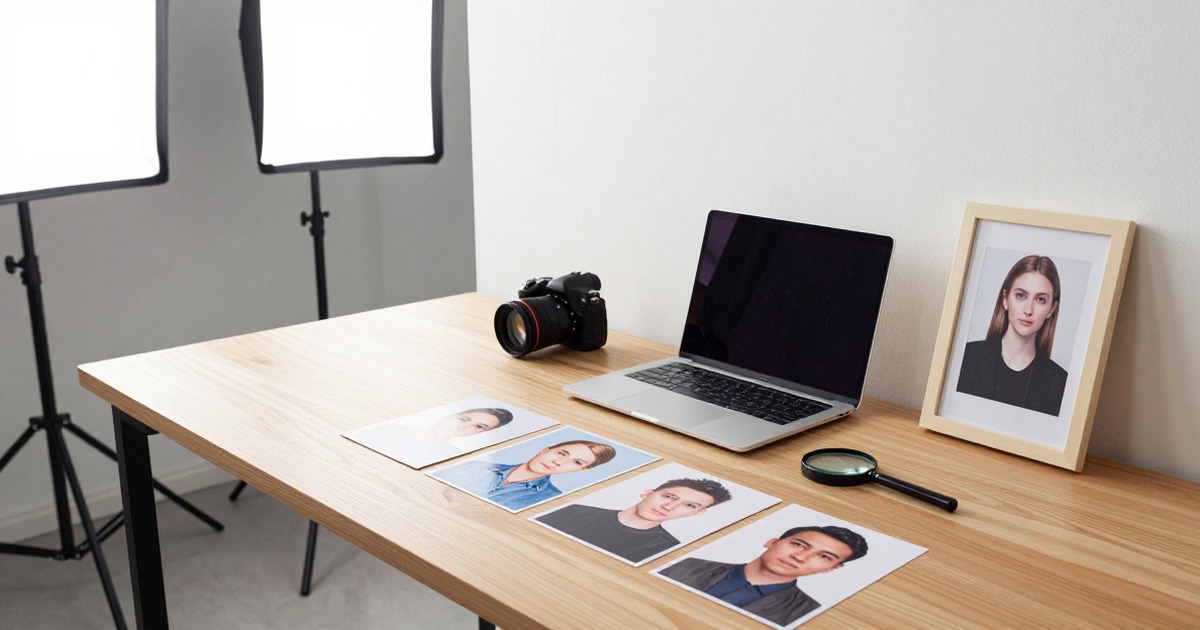
[IMAGE: hero | side-by-side of AI headshot looking crisp on laptop screen vs same image looking pixelated on printed business card | alt: AI headshot digital vs print quality comparison]
Why screen quality doesn't equal print quality
Screens display images at 72-150 pixels per inch. Printers need 300 dots per inch minimum for sharp output. That's roughly 2-4x more detail than your screen shows.
An AI headshot that's 1024x1024 pixels looks great on a monitor because the screen only needs about 150 PPI to look sharp. But at 300 DPI, that same image prints at roughly 3.4 x 3.4 inches. Try to stretch it to fill an 8x10 frame and you're down to about 100 DPI. That's where you get the soft, blurry, "is this a real photo?" look.
The math is simple: take your image width in pixels, divide by 300. That's how many inches it can print at full quality. Everything beyond that is the printer guessing what the missing pixels should look like.
What resolution do AI headshot generators actually produce?
This varies wildly by platform:
512x512 to 768x768: Some older or cheaper generators produce images at these sizes. Usable for small digital avatars. Essentially unprintable for anything larger than a postage stamp.
1024x1024: The standard for many current platforms. Fine for LinkedIn profile photos, email signatures, and small website thumbnails. Prints acceptably at wallet size, about 3x3 inches. Gets soft at anything larger.
1536x1536 to 2048x2048: Better platforms produce at these resolutions. Prints cleanly at 5x5 to 7x7 inches. Enough for business cards, small marketing materials, and standard headshot prints.
2048x2048 and above: The sweet spot for print-ready headshots. Narkis.ai generates at high resolution specifically to support both digital and print use cases. At 2048x2048, you get a clean print at roughly 7x7 inches at 300 DPI.
The business card test
Business cards are the most common print use for headshots. A typical headshot area on a business card is about 1.5 x 2 inches. At 300 DPI, that requires an image of at least 450 x 600 pixels. Almost every AI generator clears this bar.
But here's the catch: the image usually needs to be cropped first. If your AI headshot is a head-and-shoulders shot and you need just the face for a business card, you're cropping away 40-60% of the pixels. A 1024x1024 image cropped to face-only might drop to 500x500, which is borderline for a business card print.
The solution: use the uncropped, full-resolution output from your generator. Crop in your design software at the size you need. Don't crop first and then resize.
Color differences between screen and print
Resolution isn't the only variable. Colors shift between screen and print for a fundamental reason: screens use light-based RGB while printers use ink-based CMYK. Some colors that screens display beautifully can't be reproduced with ink. Bright blues, vivid greens, and saturated reds are the worst offenders.
For headshots specifically, this means:
Skin tones can shift. The warm, natural-looking skin in your digital headshot might print slightly cooler or flatter. This is a CMYK limitation, not an AI limitation. Studio photographers deal with the same issue.
Background colors change. If your AI headshot has a bright blue or deep teal background, expect it to look different in print. Neutral backgrounds like white, light gray, or dark gray translate most reliably.
Contrast may increase. Print often looks slightly more contrasty than screen. Shadows get darker, highlights get brighter. If your headshot has subtle shadow detail, some of that nuance may disappear in print.
The professional fix is to request or create a CMYK version of your image before printing. Most print shops can do this conversion, and some AI platforms offer CMYK export options. If you're printing large quantities, it's worth asking.
What you can print and what you can't
Here's a practical guide based on typical AI headshot resolutions:
Business cards with 1.5x2 inch headshot area: Any generator producing 1024x1024 or above. You're fine.
Company directory or ID badge at 2x2.5 inches: 1024x1024 works. 1536+ is better if the image needs cropping.
Marketing brochure at 3x4 inches: Need at least 1024x1024 uncropped. 1536x1536 gives you cropping room.
Framed desk photo at 5x7 inches: Need 1536x1536 minimum. 2048x2048 for clean results.
Conference banner or poster over 8x10: Most AI headshots won't hold up at poster size without upscaling. You'll need an AI upscaling tool like Topaz or Real-ESRGAN to add resolution before printing.
Wall-sized print at 16x20 or larger: Not realistic for standard AI headshots. Even upscaled, the detail won't match what a high-resolution camera captures. If you need a headshot this large, get a studio photo.
[IMAGE: grid 2 | AI headshot printed at correct resolution looking crisp and professional on business card, same AI headshot printed too large looking blurry and pixelated on poster | alt: AI headshot print quality at correct vs incorrect size]
How to upscale an AI headshot for larger prints
If your headshot is 1024x1024 and you need it larger, AI upscaling tools can help. These tools use neural networks to intelligently add detail as they increase resolution. They're not creating real detail from nothing. They're making educated guesses about what the detail should look like. For headshots, the results are usually convincing.
Free options: Real-ESRGAN, Upscale.media, Let's Enhance with limited free tier.
Paid options: Topaz Gigapixel for best quality with one-time purchase, Adobe Photoshop's neural filters on subscription, Pixelmator Pro for Mac only.
A good upscaler can take a 1024x1024 image to 4096x4096 with minimal quality loss. That's enough for a clean 13x13 inch print at 300 DPI. Beyond 4x upscaling, quality degrades noticeably.
One warning: upscaling a soft or artifact-heavy image makes those problems worse, not better. Start with the sharpest, cleanest generation your AI headshot platform produces. Upscale that one.
File format matters
When saving your AI headshot for print:
PNG for maximum quality. No compression artifacts. Larger file size. This is what you should send to a professional print shop.
TIFF if the print shop requests it. Essentially the same quality as PNG with better CMYK support.
JPEG at 95-100% quality if file size is a constraint. Slight quality loss but usually invisible at headshot sizes. Never save below 90% quality for print.
Never use the compressed version from LinkedIn, Slack, or any social platform. These platforms recompress uploaded images, sometimes dramatically. Always work from the original file you downloaded from the headshot generator.